
Email Hosting for Small Businesses Setup and Management Guide

Sharma bal
Table of content
- 1. Start with an address inventory
- 2. Turn that inventory into a realistic budget
- 3. Keep employee email separate from automated sending
- 4. Confirm control of the domain and DNS
- 5. Configure mail routing and authentication
- 6. Migrate without abandoning the old mailboxes too soon
- 7. Test the work people actually do
- 8. Protect access and prepare for staff changes
- 9. Maintain a recovery routine
- Keep the service workable as the team grows
Email hosting for small businesses has to work for the whole company, including the person who answers customer enquiries when the owner is away. The first task is to map who needs a mailbox, which addresses belong to a team and which applications send messages automatically. That map will shape the bill and the setup.
This guide takes you from those requirements through domain configuration, migration and routine administration. If you are still deciding which service to buy, start with our best email hosting provider comparison. Here, the focus is putting the chosen service to work.
1. Start with an address inventory
List every address the business uses, including ones printed on invoices or connected to website forms. Record its owner, who needs access and what should happen when that person is unavailable. A forgotten billing address can matter more than the largest inbox.
Separate people from roles. A named employee normally needs an individual account. An address such as [email protected] belongs to a function that may outlast any one employee. Avoid solving that distinction by giving several people the same password.
| Address type | Typical purpose | Decision to make |
|---|---|---|
| Individual mailbox | A person’s correspondence and sign-in | Who owns it and how access will be recovered |
| Alias | Another address delivering into an existing mailbox | Whether one person can handle all replies |
| Shared mailbox | A team working with a common inbox | Read and send permissions, plus conversation ownership |
| Distribution group | Delivering a message to several recipients | Whether separate copies meet the workflow |
| Application sender | Receipts, password resets or notifications | Sending service and responsibility for failures |
Providers implement these features differently. For example, Microsoft shared mailboxes use delegated access from licensed user mailboxes rather than a shared direct login. Check the corresponding rules for your chosen service.
2. Turn that inventory into a realistic budget
Consider a hypothetical business with four employees and public addresses for sales and support. That does not automatically mean six paid user accounts. Depending on the service and required features, a role address might be an alias or shared mailbox. Equally, an alias may be inadequate if several employees need one shared history.
Build the estimate from real users and workflows. Add domain renewal, extra storage where needed, migration help and any backup service. If a plan includes office applications the team already pays for elsewhere, check whether subscriptions will overlap.
Name the person who will administer the system. A low monthly price becomes less attractive if nobody knows how to restore access or investigate a failed delivery.
3. Keep employee email separate from automated sending
Customer conversations belong in staff or team inboxes. Password resets and order confirmations are application messages. Newsletters are subscription campaigns. They can use the same brand, but they have different sending and management needs.
Give the website or shop a documented sending arrangement instead of quietly borrowing an employee’s password. A transactional email service can handle application messages, while a campaign service manages lists and unsubscribes. Record each sender before configuring domain authentication.
A Hostomize VPS can run the website or application while a separate provider operates the mailboxes. Buying a VPS does not require you to run your own mail server. For a small team, keeping those responsibilities separate can make support and recovery easier to organise.
4. Confirm control of the domain and DNS
You need access to the domain’s authoritative DNS service, which may be different from the registrar or website host. Save the current records before editing them. Confirm who receives domain-renewal notices and make sure account recovery will still work if business email is unavailable.
Follow the mail provider’s domain-verification process first. Verification establishes control; it does not by itself move incoming mail. Avoid replacing the entire DNS zone with an email example, as that could remove records the website still needs.
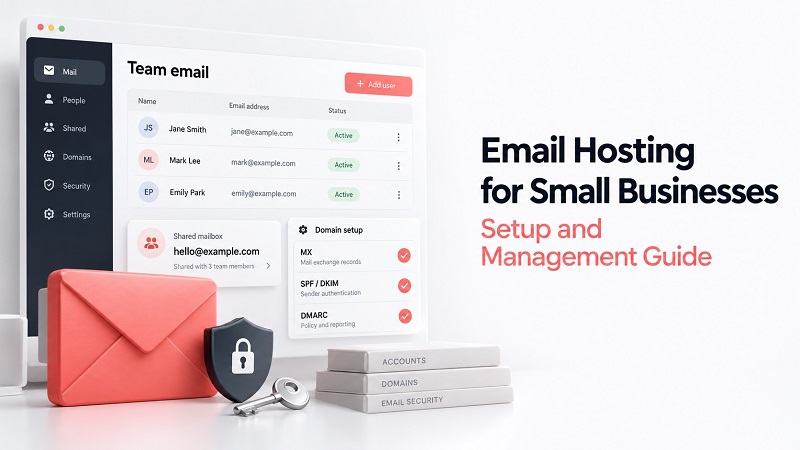
5. Configure mail routing and authentication
Use the values supplied for your own domain and tenant. Another company’s screenshots are useful for understanding the fields, but their record values may be wrong for your account.
| Record | What it does | Setup consideration |
|---|---|---|
| MX | Directs incoming mail to receiving servers | Change at the planned mail cutover |
| SPF | Authorises systems to send for a domain | Combine legitimate senders in the appropriate policy |
| DKIM | Publishes keys used to verify message signatures | Add provider-issued records and enable signing |
| DMARC | Checks alignment and publishes a handling policy | Review legitimate senders before tightening enforcement |
For SPF, maintain one SPF record per domain rather than adding a second competing record for another service. Check its DNS-lookup limits when combining senders. DKIM configuration may use TXT or CNAME records, depending on the provider.
DMARC passes when at least one of SPF or DKIM passes with the required alignment to the visible From domain. Start with monitoring where appropriate, review reports and resolve legitimate failures before adopting a stricter policy. Authentication reduces impersonation opportunities; it does not make every message arrive in the inbox.
Check sent-message headers and the provider’s verification tools. Receiving a test message is useful, but it does not prove all authentication checks passed.
6. Migrate without abandoning the old mailboxes too soon
Create the destination accounts and role addresses before switching incoming mail. Run a pilot with a mailbox that represents the real workload: folders, attachments and an older archive. Calendar and contact transfers may require a different process from copying messages.
Agree on a change window and tell staff what will happen. An initial copy can move most historical mail in advance, with a later synchronisation handling messages that arrived during the transition. Keep the old service available until you have verified the migration and accounted for remaining delivery there.
Changing MX records does not transfer mailbox contents. It changes where incoming messages are directed. DNS caches can retain older routing information, so avoid promising that every sender will switch at precisely the same moment.
Before cancelling the old subscription, test incoming and outgoing messages, shared-address replies and the applications that send on your behalf. Keep a record of the old DNS settings and a recovery plan; simply reversing an MX change does not reconcile messages split across two systems.
7. Test the work people actually do
Ask employees to perform normal tasks on both their desktop and phone. Can they find an old invoice, reply from the support address and open a shared calendar? Check the sender address on the reply, not just whether the message was delivered.
Test a password-reset message from the website and an order confirmation from the shop if those functions exist. Have someone outside the company reply to a public address. These tests cover different paths, so one successful message should not stand in for all of them.
Write down the result and the person responsible for any remaining issue. Staff need one place to report problems during the transition rather than several unconnected conversations.
8. Protect access and prepare for staff changes
Enable multifactor authentication and keep recovery information in a protected location that remains accessible during a mail outage. Use individual administrator accounts and grant administrative rights only where the work requires them.
When an employee leaves, follow a documented handover: block their access, revoke sessions and application credentials where applicable, transfer business correspondence appropriately and review forwarding rules. Check the provider’s retention behaviour before deleting accounts or removing licences.
A mailbox should not disappear merely because payroll has removed its owner from a staff list. Decide who handles future enquiries and which records the business needs to retain.
9. Maintain a recovery routine
Find out what the provider can restore, for how long and at whose request. Retention, deleted-item recovery and independent backups can address different failures. Test the recovery process you intend to rely on.
Review administrator access, unexpected forwarding, storage usage and failed senders on a regular schedule. Domain renewal belongs in the same routine. If the domain expires, a healthy mail platform alone cannot preserve normal service at that address.
Keep a short incident record: affected addresses, time, error text and any recent change. It gives support something specific to investigate when “email is broken” turns out to mean one sender, one device or one application.
Keep the service workable as the team grows
Add new users through the same documented process, review access when responsibilities change and update the sender inventory when a new application is introduced. If the current provider stops meeting the requirements, return to the email hosting provider comparison with that inventory. It turns a vague search for something better into a specific purchase decision.